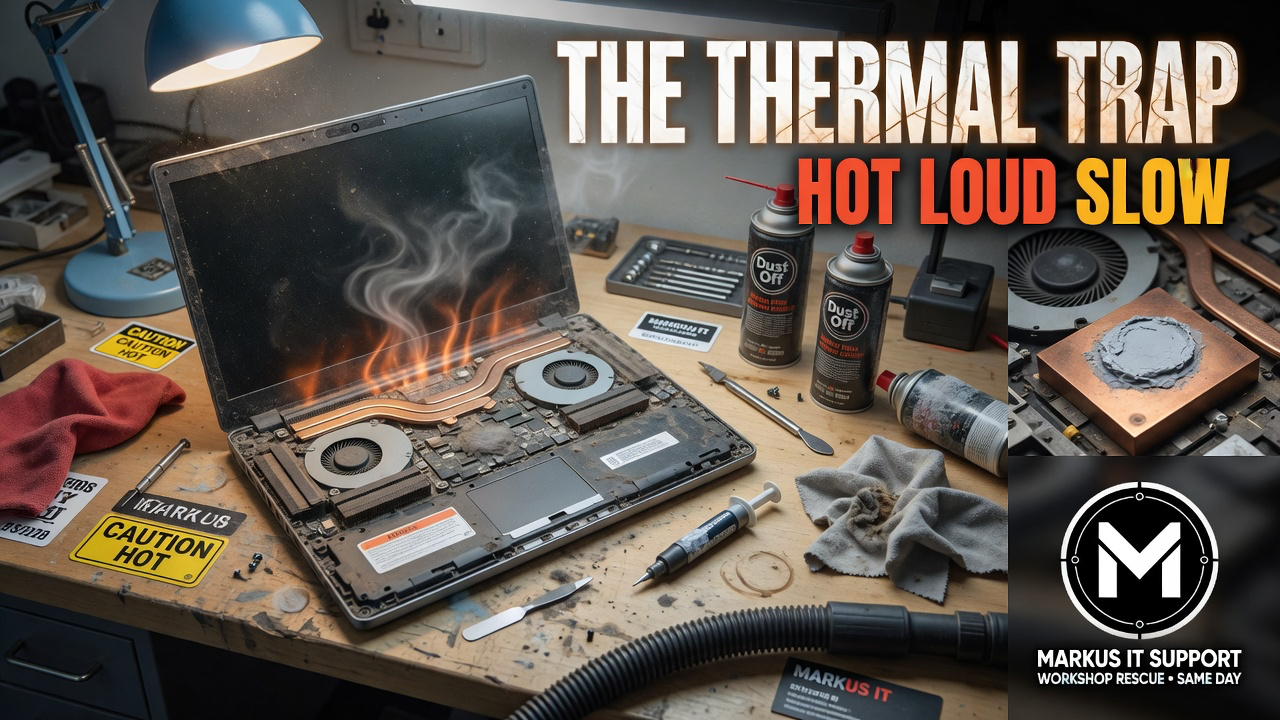
You open the laptop. Within ten minutes the fans sound like a hairdryer in a small bathroom. The case is uncomfortably warm. The spinning beachball — or Windows circle of patience — appears when you open a second browser window. Somebody says, “It’s getting old.”
Maybe. Or maybe the machine is simply cooking itself into slow mode.
Modern processors are designed to protect themselves. When temperatures climb, they deliberately reduce speed — thermal throttling — so they do not damage the silicon. From the outside it looks like an old computer. From the inside it often looks like years of dust, dried thermal paste and a cooling path that can no longer do its job.
What heat actually does
Heat is not a mysterious curse. It is physics. A processor under load produces energy that must leave the chassis through a heat sink, heat pipes and one or more fans. Block the path with carpet fluff, pet hair and kitchen grease, and the same CPU that flew in 2016 will stutter in 2026 — not because the cores “wore out,” but because they are being asked to run while wearing a thermal duvet.
Symptoms I hear every week:
- Loud fans almost immediately after login
- Sudden slowdowns after half an hour of use
- Hot keyboard deck or palm rest
- Unexpected shutdowns under video calls or large downloads
- A machine that “used to be quiet” and now announces itself from the next room
None of those prove the motherboard is dead. They prove the cooling story needs investigation.
The usual suspects
Dust and blocked vents. Laptops pull air through narrow grilles. One season of neglect can turn a fine mesh into felt. Towers are worse when they sit on carpet and inhale fibres all day.
Dried thermal paste. The material between the processor and the heat sink ages. What was once a thin, efficient layer becomes brittle and less effective. Fresh paste is not magic — but on a machine that has never been opened, it can be a quiet miracle.
Failing or sticky fans. Bearings wear. Fans rattle, stall or spin inefficiently. Replacing a fan is often cheaper than replacing a computer.
Heavy background load. A tired mechanical hard drive, endless cloud sync and security scans all make the processor work harder, which makes more heat, which makes more throttling. Heat and storage often dance together.
What a sensible rescue looks like
When I open a machine for thermal work, I am not performing a spa day for the sake of it. I am restoring the cooling path the engineers designed:
- Controlled disassembly and dust extraction from fans, heat sinks and intake paths
- Fresh thermal interface material where it is safe and useful to renew
- Fan and temperature behaviour checked under realistic load
- Honest notes if a heat pipe, fan or board fault means repair is not good value
Pair that with an SSD upgrade on a mechanical drive, and many “dying” machines stop sounding like jet engines and start feeling usable again. The processor was never the villain. It was waiting for oxygen and data.
What not to do
Do not force compressed air into a sealed chassis without knowing where the dust will go — sometimes you pack it deeper. Do not peel apart a MacBook with a butter knife and a tutorial filmed in 2014. Do not ignore a battery that is bulging the case; that is a safety issue, not a thermal tip. And please ignore “PC cleaner” apps that invent red scores and sell subscriptions. They cannot vacuum a heat sink.
When heat means replace, not rescue
Thermal service is excellent value when the chassis, screen and storage path still make sense. It is poor value when the machine already has cracked hinges, a failing battery, a dying drive and a board that browns under load. Then the honest answer is replacement — and I will say so. Rescue is a philosophy, not a religion.
The final verdict
If your computer is hot, loud and slow, do not start with “I need a new one.” Start with “is the cooling system still doing its job?” Age is not a diagnosis. Heat is a measurable problem with practical fixes — and on classic modular hardware, those fixes often cost a fraction of a disposable replacement.
Let’s find out whether your sleeping giant is overheating… or simply overdue a service.
Further Reading & Resources
- Markus IT Intel: The Modular Truth: SSD Power →
- Guides: Why is my old Mac so slow? →
- Guides: Why is my Windows PC so slow? →
- Safety: Battery swelling explained →